
Step 01
Open the Remote Login page
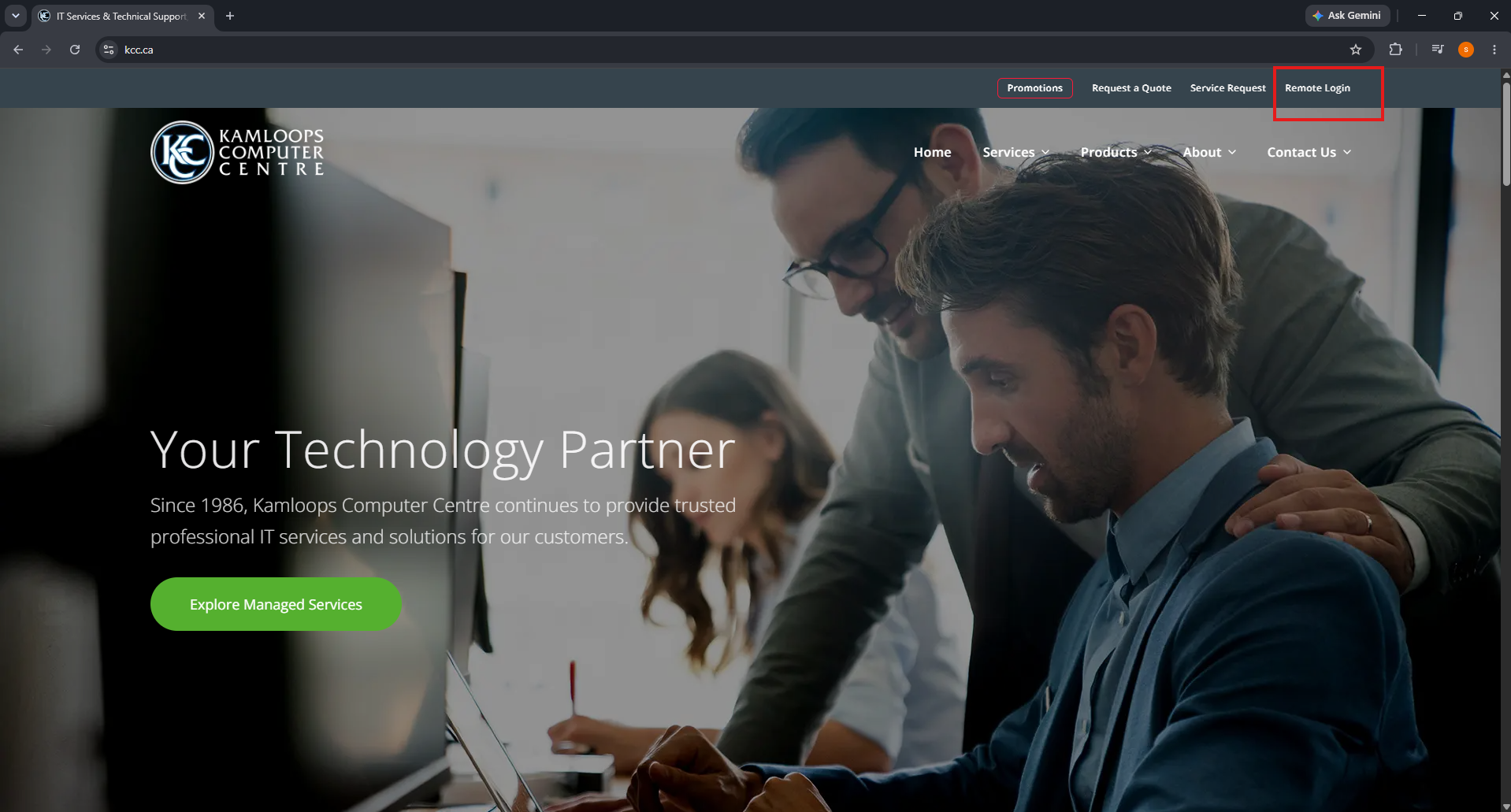
Go to kcc.ca and select Remote Login from the top menu.
 Open full-size screenshot
For your convenience and cost savings, KCC provides remote support to directly connect to your PC or Server with your approval. Our certified technicians will help with computer problems such as viruses, spyware, email issues, hardware configuration and software issues.
If repair is not possible through remote support, a technician is available to perform an onsite visit for you for a fee or, you can bring your computer into our convenient location at 101-1285 McGill Road, Kamloops, BC.
We look forward to your call at 250-374-6887 and we can get you started remotely.
Select the browser you are using, then follow the five steps below. Keep your KCC technician on the phone while you complete the setup.
Step 01
Go to kcc.ca and select Remote Login from the top menu.
Open full-size screenshotStep 02
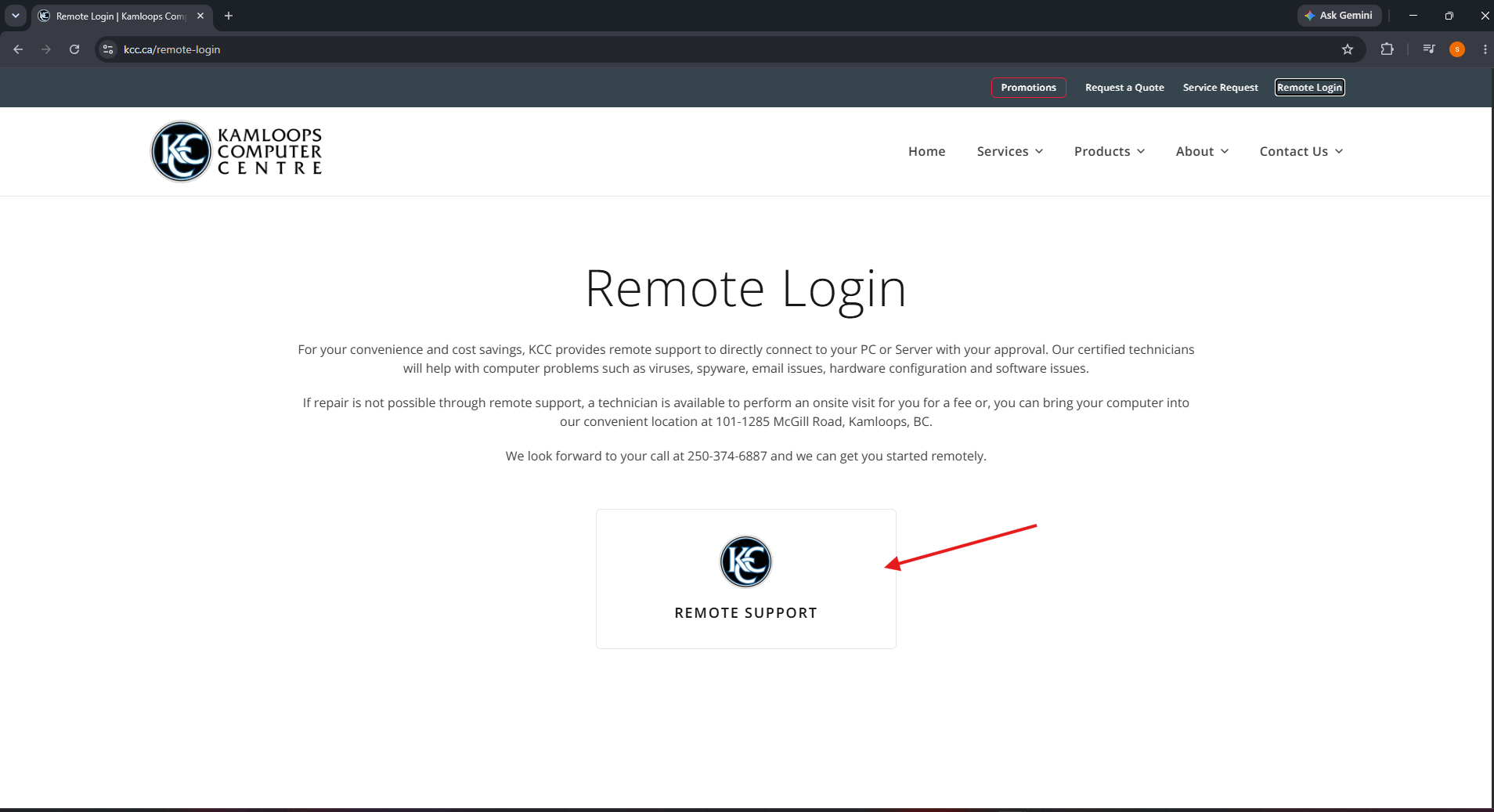
Select the Remote Support button. The KCC remote support installer will begin downloading.
 Open full-size screenshot
Step 03
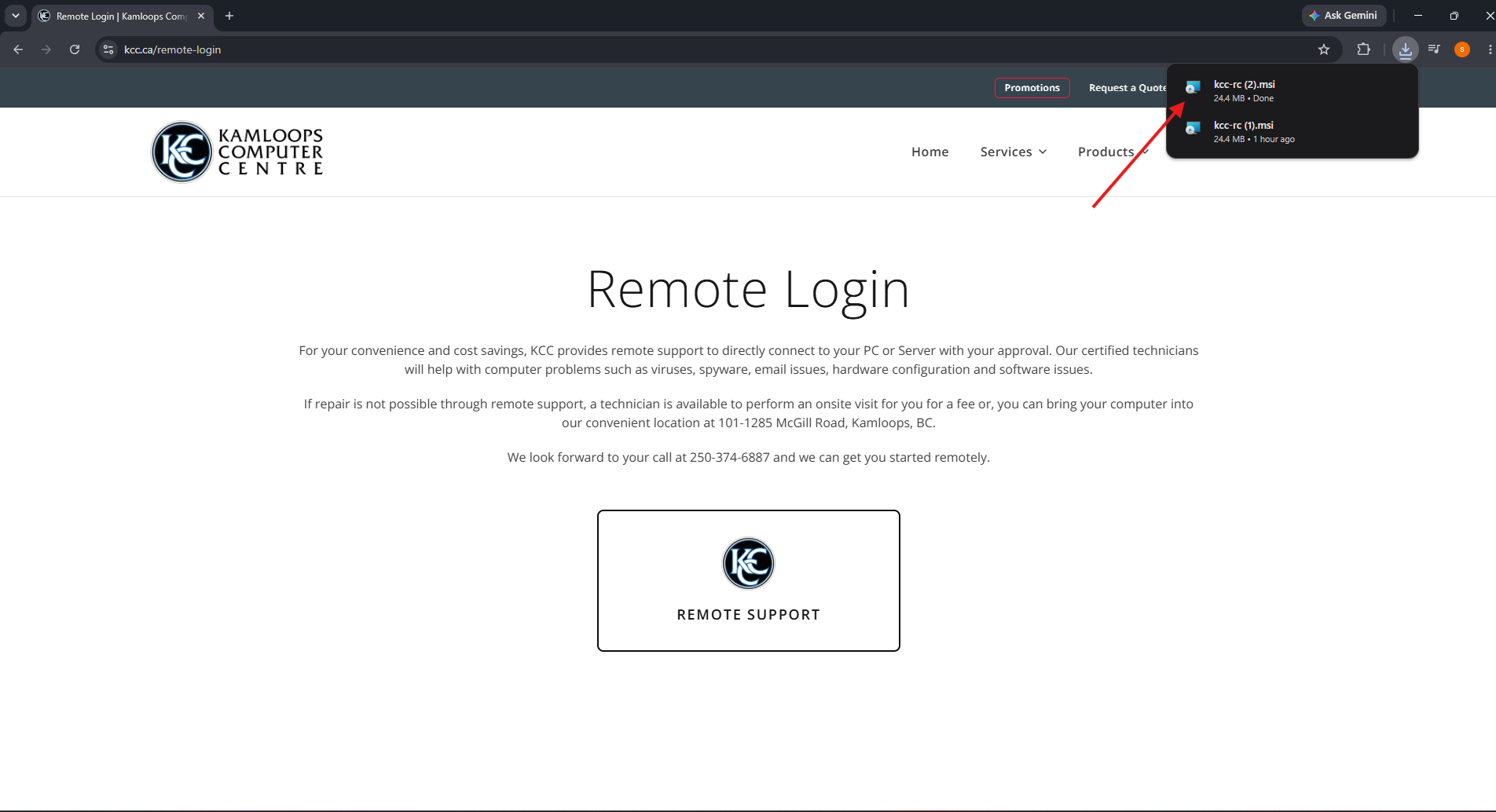
Select the Downloads icon in the upper-right corner, then open the downloaded kcc-rc.msi file.
 Open full-size screenshot
Step 04
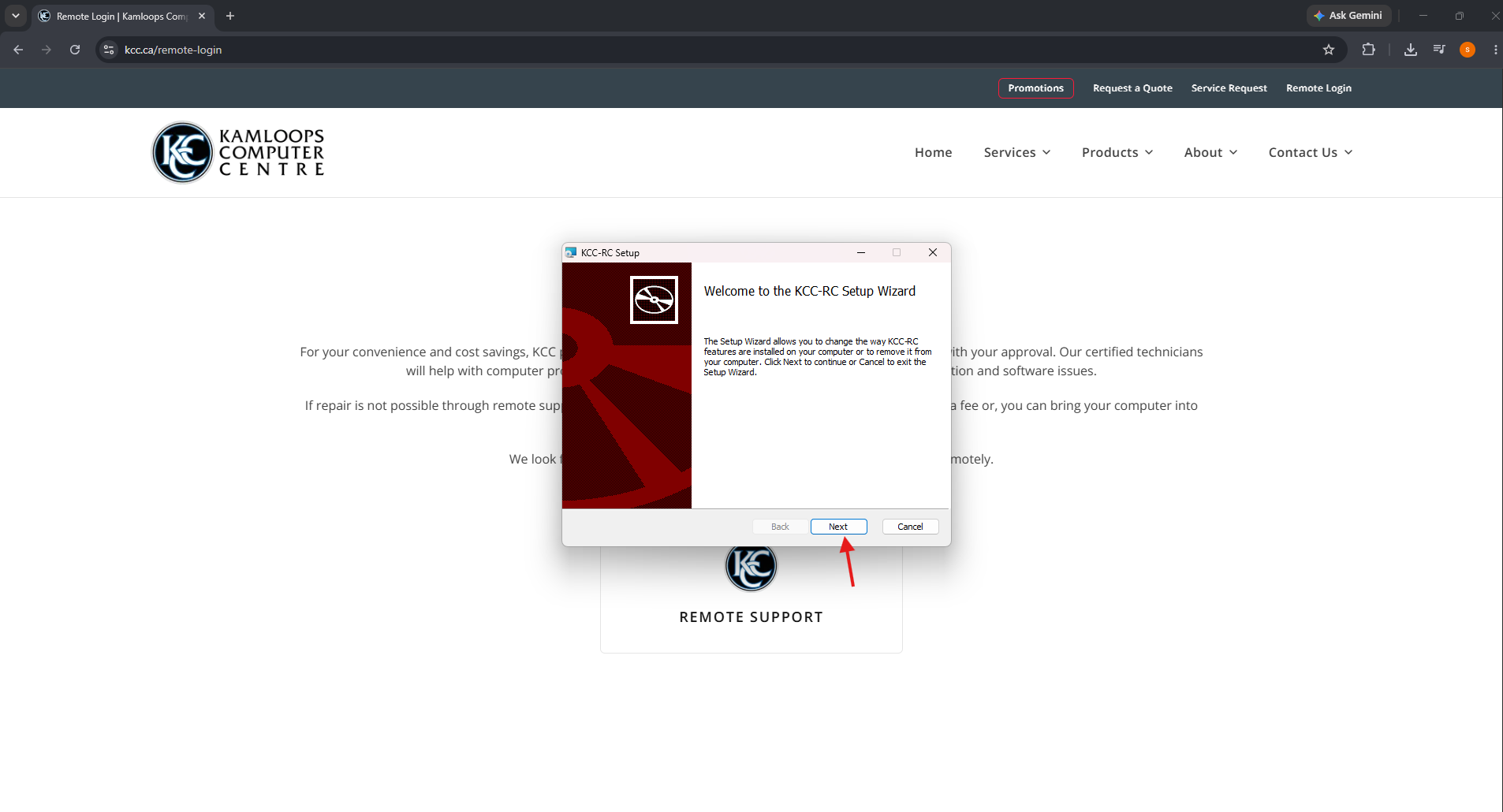
When the KCC-RC Setup Wizard appears, select Next and follow the prompts to finish installing remote support.
 Open full-size screenshot
Step 05
Once KCC-RC opens, provide the ID and one-time passwordshown under “Your Desktop” to your KCC technician.
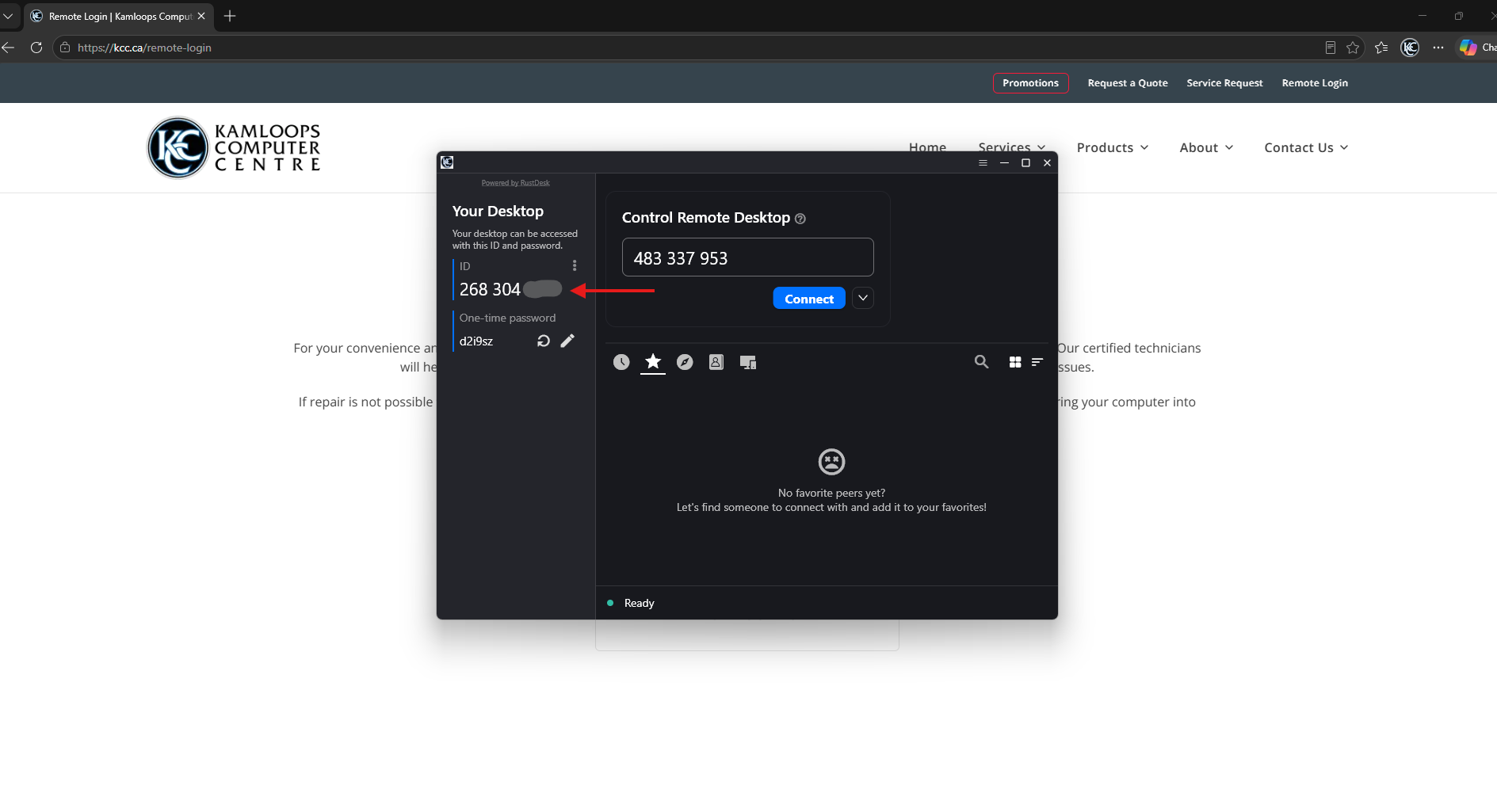 Open full-size screenshot